How to Update Capcut Pro APK to the Latest Version
November 7, 2026 (2 days ago)
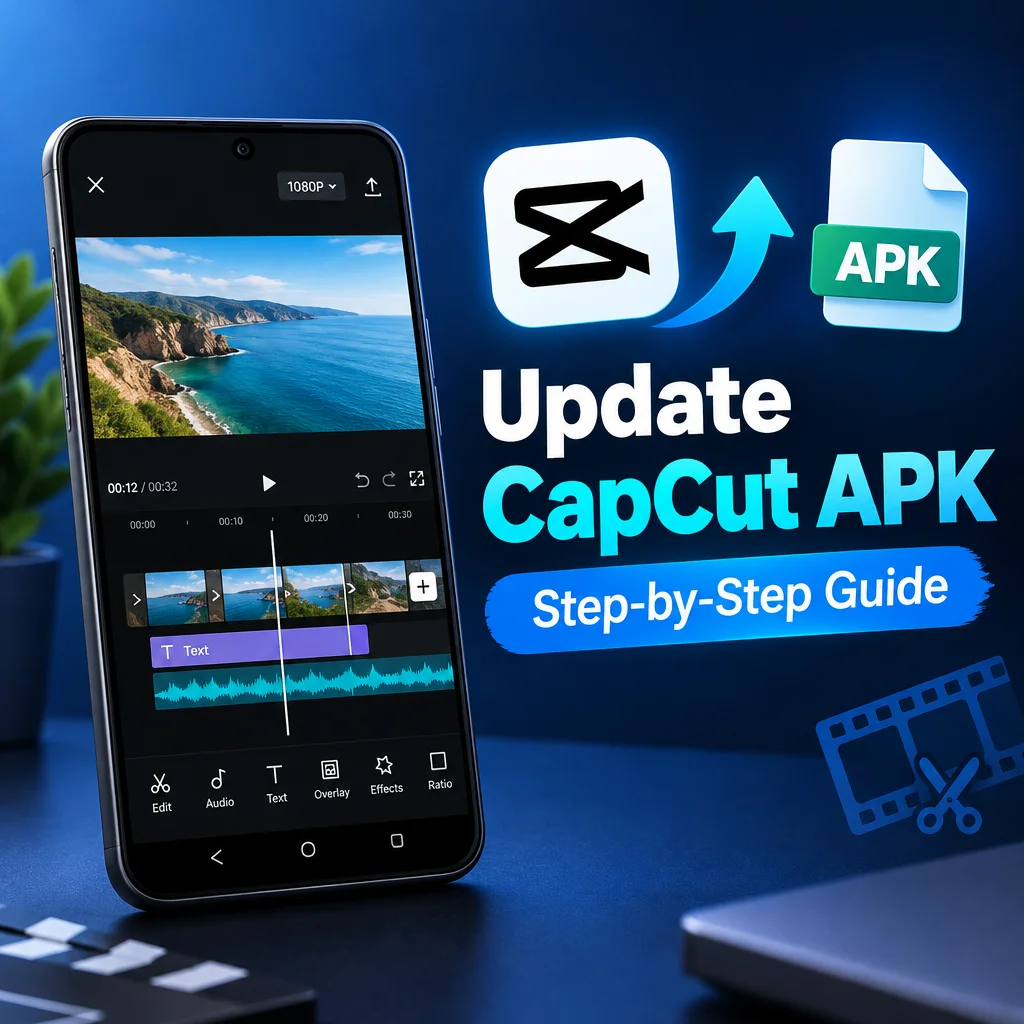
Updating CapCut Pro APK sounds simple, but it is worth doing carefully. APK files are Android app packages, and they are not the same as the official CapCut apps for iOS, Windows, macOS, or the web. This guide explains how to update a CapCut Pro APK on Android in a safe, practical way, without assuming that any downloaded APK is official, verified, or the newest release. CapCut editing tools may include trimming, splitting, multitrack editing, captions, effects, transitions, templates, filters, and background removal, but feature availability can depend on your device, region, platform, and plan.
Important Before You Update
This guide is for information only. This website is independent and is not CapCut, ByteDance, an official publisher, an authorized distributor, or a verified security laboratory. If you downloaded a CapCut Pro APK from a third-party website, its version, contents, safety, scan status, and release status have not been verified here.
Also, be careful with any page that promises free premium features, unlocked Pro tools, subscription bypass, or guaranteed watermark-free exports. CapCut Pro features require the correct membership in the official app. An APK should not be treated as a guaranteed way to access paid features for free.
Step 1: Check What You Currently Have Installed
Before installing any update, check your current app details. This helps you compare versions and avoid reinstalling the same file again.
- Open your Android phone settings.
- Go to Apps or App Management.
- Find CapCut in the app list.
- Tap it and look for the installed version number.
- Write it down or take a screenshot for comparison.
If your app was installed from Google Play, the safest update method is usually to use Google Play. If it was installed from an APK file, Android may not update it automatically unless the package signature matches the installed app.
Step 2: Back Up Your Projects
Video projects can take hours to create, so back them up before updating. App updates usually keep your data, but errors can happen. Storage issues, failed installations, or incompatible packages may cause problems.
- Export any important finished videos to your device gallery.
- Save project files or drafts if the app gives you that option.
- Move important media clips to a separate folder.
- Make sure your phone has enough free storage before updating.
- If you use cloud sync or an account feature, check that your projects are synced properly.
Do not uninstall the current app unless you are sure your drafts and assets are backed up. Uninstalling may remove local project data.
Step 3: Prefer Official Update Sources When Possible
The official CapCut app is available through official app stores and official platforms. If you want the most reliable update path, check the official source for your device.
- Open the Google Play Store on Android.
- Search for CapCut.
- If an update is available, tap Update.
- Wait for the installation to finish.
- Open the app and confirm your projects are still available.
This is different from installing a CapCut Pro APK from a website. Third-party APK files may not match the official app package, may not update cleanly, and may not include the features you expect. Their release status is unverified unless you confirm it through reliable official information.
Step 4: If You Still Choose to Update Using an APK
If you decide to update using an Android APK, proceed carefully. An APK is Android-only. You should not install an APK directly on iPhone, iPad, macOS, or Windows. For PC, you can use the official desktop version of CapCut, or you may run Android apps through an Android emulator if supported, but that is separate from the native Windows or macOS app.
- Download only from a source you personally trust.
- Compare the package name and version with the app already installed.
- Do not rely on labels such as “latest,” “mod,” “premium unlocked,” or “Pro free” as proof.
- Scan the file with your own security tools if you choose, but remember that scans cannot guarantee safety.
- Avoid APK files that request unusual permissions unrelated to video editing.
Because the APK has not been inspected here, no claim is made about whether it is safe, clean, certified, ad-free, official, or malware-free.
Step 5: Enable APK Installation Temporarily
Android blocks unknown app installations by default. If you are installing an APK manually, you may need to allow installation from your browser or file manager.
- Open Settings on your Android device.
- Go to Security, Privacy, or Apps, depending on your phone.
- Find Install unknown apps.
- Select the browser or file manager you used to download the APK.
- Enable permission only for the installation process.
After the update is complete, it is smart to turn this permission off again. Leaving unknown installation permissions enabled can increase risk if you accidentally download unwanted files later.
Step 6: Install the APK Update
Once the APK file is downloaded, open it from your file manager or notification panel. Android will show an installation screen. If it says the app will be updated, review the information carefully before continuing.
- If Android says the app cannot be installed, the APK may not match the installed app signature.
- If it asks to install as a separate app, the package may be different from your existing app.
- If it requests many new permissions, stop and review them before installing.
- If storage is low, free space before trying again.
When the installation finishes, open CapCut and check whether your drafts, tools, and settings are still available. If something looks wrong, do not delete your backup files.
Step 7: Check Features After Updating
After updating, test the app with a simple project before working on an important video. Try trimming a clip, splitting a video, adding captions, applying an effect, testing a transition, and exporting a short sample file. This helps you confirm that the basic editing workflow is working on your device.
Some editing features may depend on your phone model, Android version, region, login status, or plan. Advanced tools and Pro features in the official CapCut app require the appropriate membership. Do not assume that an APK update will unlock paid options or remove limits.
Step 8: Fix Common Update Problems
- App not installed: The APK may be incompatible, corrupted, or signed differently from the installed app.
- Update fails: Restart your phone, free storage, and try again.
- Projects missing: Check whether you installed a different app package or removed local data.
- Features not showing: Availability may depend on your account, region, device, or plan.
- App crashes: Clear temporary cache, close background apps, or reinstall only after backing up your data.
Best Practice for Future Updates
The best way to keep CapCut current is to use official update channels whenever possible. If you rely on APK files, keep careful notes about where the file came from, what version you installed, and whether it worked correctly on your device. Avoid rushing to install files only because they claim to be the latest version. For third-party APK downloads, the release status is not verified unless confirmed through trusted official information.
A careful update process protects your projects and reduces avoidable problems. Back up your work, verify what you can, avoid unrealistic premium claims, and remember that APK installation is only for Android devices. For iOS, Windows, macOS, and web editing, use the correct CapCut version for that platform instead of trying to install an Android APK directly.
Recommended For You