How to Get the Most Out of Capcut Pro APK
October 14, 2026 (4 weeks ago)
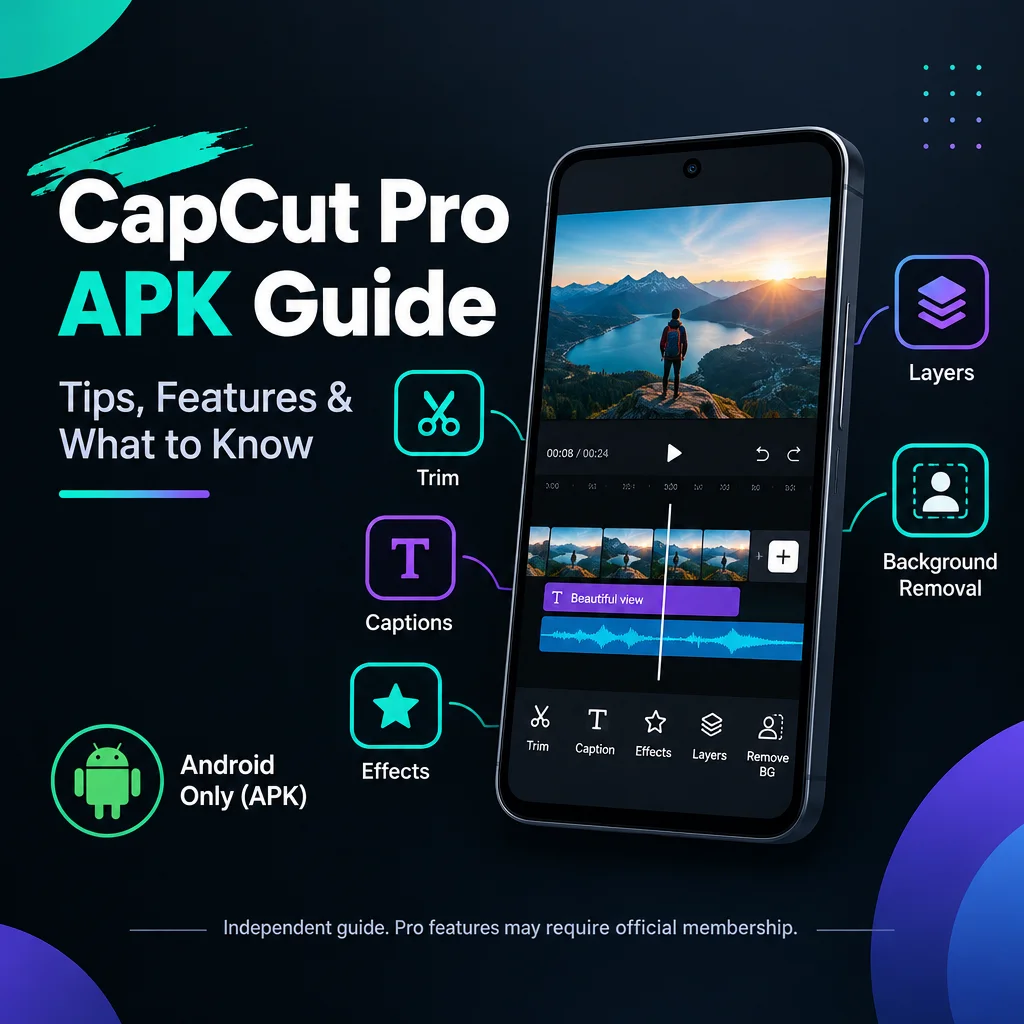
Getting the most out of CapCut means learning how to work faster, edit smarter, and use its creative tools with purpose. Some people search for “CapCut Pro APK” because they want access to advanced editing options on Android, but it is important to be careful with APK files from unofficial sources. This site is independent and is not CapCut, ByteDance, an official publisher, an authorized distributor, or a verified security lab. Any APK you download outside official stores has not been inspected here, so its safety, version, features, ads, or subscription status cannot be guaranteed. CapCut Pro features require the appropriate membership in the official app.
Start With a Clear Editing Plan
Before opening CapCut, decide what you want your video to achieve. A short social media clip, tutorial, vlog, product video, or cinematic edit will all need different pacing, music, text, and effects. A simple plan helps you avoid cluttering your timeline with unnecessary clips and transitions.
- Choose the main message of your video before importing clips.
- Separate your best footage from extra or weak clips.
- Pick a visual style, such as clean, fast-paced, cinematic, or playful.
- Decide where captions, music, sound effects, and overlays will be used.
This makes the editing process much smoother, especially when working on mobile where screen space is limited.
Use Trimming and Splitting to Improve Flow
One of the easiest ways to make your videos look more professional is to remove slow, repeated, or awkward moments. CapCut includes basic editing tools such as trimming, splitting, and rearranging clips. These tools may sound simple, but they are the foundation of a clean edit.
- Import your clips and place them in order.
- Watch the full timeline once without adding effects.
- Split clips where the action changes or where there is silence.
- Delete pauses, mistakes, and unnecessary footage.
- Preview again and adjust timing until the video feels smooth.
Good pacing is often more important than fancy effects. If the video feels tight and easy to watch, viewers are more likely to stay until the end.
Work With Multiple Tracks for Better Control
CapCut supports multitrack editing, depending on platform, device, region, and plan. This lets you layer videos, images, audio, stickers, captions, and effects. Instead of placing everything on one track, organize your timeline carefully.
- Keep your main footage on the primary video track.
- Use overlay tracks for cutaways, reaction shots, logos, or screenshots.
- Place music on one audio track and voiceover on another.
- Add sound effects only where they support the scene.
Multitrack editing is useful for tutorials, reaction videos, product demos, gaming clips, and short-form content. The key is not to over-layer. Every element should have a reason.
Make Captions Easy to Read
Captions can improve watch time, especially on platforms where users often watch without sound. CapCut offers caption tools, though availability can vary by region, platform, device, or plan. Whether you create captions manually or use available auto-caption options, readability matters.
- Use short lines instead of long sentences.
- Choose a clean font that is easy to read on small screens.
- Keep text away from buttons and platform interface areas.
- Use contrast, such as white text with a dark shadow or background.
- Time captions carefully so they match the speech.
Avoid filling the screen with too much text. Captions should support the video, not distract from it.
Use Effects and Transitions With Purpose
CapCut includes many effects, filters, transitions, and motion tools. These can make videos more dynamic, but too many effects can make an edit look messy. Use transitions to guide the viewer, not to show every option available.
- Use quick cuts for energetic videos.
- Use fades for emotional or slower content.
- Use zooms and motion effects to highlight important moments.
- Match transitions to the beat of the music for a more polished feel.
- Avoid changing transition styles too often in one video.
A simple editing style often looks more professional than a video overloaded with effects. If an effect does not improve the message, remove it.
Improve Audio Before Final Export
Audio quality can make or break a video. Viewers may forgive slightly imperfect visuals, but unclear sound can make them leave quickly. CapCut offers audio editing options such as volume control, music, voiceover, and sound effects, with availability depending on your device and app version.
- Lower background music so it does not overpower speech.
- Use fade in and fade out for smoother music transitions.
- Cut audio at natural pauses instead of in the middle of words.
- Add subtle sound effects to emphasize actions or transitions.
- Listen with headphones before exporting.
If your video includes voice, make sure it is clear and balanced. Loud music, uneven volume, or noisy background audio can make even a good edit feel unprofessional.
Try Background Removal Carefully
CapCut may include background removal or cutout tools on supported platforms, devices, regions, or plans. These tools can be useful for thumbnails, talking-head videos, product highlights, and creative overlays. Results can vary depending on lighting, contrast, and subject movement.
- Use footage with a clear subject and simple background.
- Avoid fast movement when possible.
- Check edges around hair, hands, and clothing.
- Add a clean background that matches the video style.
Background removal works best when the original footage is recorded well. Good lighting and clear separation between subject and background will usually give better results.
Be Careful With APK Installation
APK packages are for Android devices only. They cannot be installed directly on iPhone, iPad, macOS, or Windows. Native iOS, Android, desktop, and web versions of CapCut are separate. If you are using a PC, you may use the official desktop version where available, or you may choose to run an Android APK through an emulator if the emulator supports it. Emulator performance and compatibility can vary.
If you choose to install any Android APK from outside official app stores, treat it with caution. This guide does not verify APK safety, malware status, version, certification, ads, or premium access. Do not rely on claims that promise free subscriptions, unlocked Pro tools, watermark-free exports, or subscription bypass. CapCut Pro features require the appropriate membership in the official app.
Export With the Right Settings for Your Goal
CapCut offers export options, but exact settings and availability may depend on your platform, device, region, and plan. You do not always need the highest possible settings. Pick export settings based on where the video will be uploaded and how it will be watched.
- Use vertical format for short-form platforms.
- Use horizontal format for YouTube-style videos or presentations.
- Preview your video after export to check timing, text, and audio.
- Keep a project backup if you may need to make changes later.
Before posting, watch the final video from start to finish. Look for spelling mistakes, audio jumps, awkward cuts, or text that appears too fast. A final review can save you from publishing a video that needs to be fixed later.
Build a Repeatable Editing Workflow
The best way to get more value from CapCut is to build a workflow you can repeat. Start with organizing clips, then trim, arrange, add captions, adjust audio, apply effects, color-check, and export. This saves time and helps your videos look consistent.
- Import and organize media.
- Cut the main story first.
- Add overlays, captions, and graphics.
- Balance music, voice, and sound effects.
- Apply effects only where needed.
- Preview, correct, and export.
CapCut can be a powerful editing tool when used thoughtfully. Whether you are editing on Android, desktop, or another supported platform, focus on clean storytelling, strong pacing, readable captions, balanced audio, and careful exports. Those practical habits will improve your videos more than any single effect or preset.
Recommended For You